
Using Price Categories in Curve for Product-Specific Royalty Rates
Price Categories in Curve allow you to configure royalty variations based on the pricing bracket of the product sold (e.g. Full Price, Mid Price, Free). In royalty accounting, these categories are typically assigned to Physical sales, where a different royalty rate may have been agreed depending on whether the physical copy was sold at the full price, or at a discount, or given away for free.
Additionally, Price Categories can be used more creatively as a further level of classification within your Configuration. You can use it to essentially say “if the track was streamed as part of a release of this type, or a release of that type was sold, then we want to apply a specific royalty rate”.
Catalogue Groups in contrast only allow you to specify a specific royalty rate for track sales coming from a certain track, or release sales coming from a certain release. They don’t have the ability to specify a different royalty rate when a track was streamed as part of a specific release.
A common real-world scenario is when you re-release a track on a Compilation, and agree to a lower royalty rate when the track is streamed as part of that Compilation. You then have a track with one ISRC, whose rate should be different depending on whether the track was streamed as part of the original album or as part of the compilation.
In this article, we will demonstrate how we can set up such a scenario within Curve. In summary, you can provide a default Price Category on a Release, tell Curve to assign that Price Category to every sales line (track or release sale) that is mapped to that Release, and then in the Contract specify a royalty rate for revenue with that specific Price Category.
Key configuration overview
To set up such a scenario on Curve, the key steps are to:
- Create the Price Category in Settings > Configurations
- Assign the Price Category as a default to the relevant releases
- Enable both Overwrite Price Category and Overwrite Track Price Category in all applicable Sales Templates
-
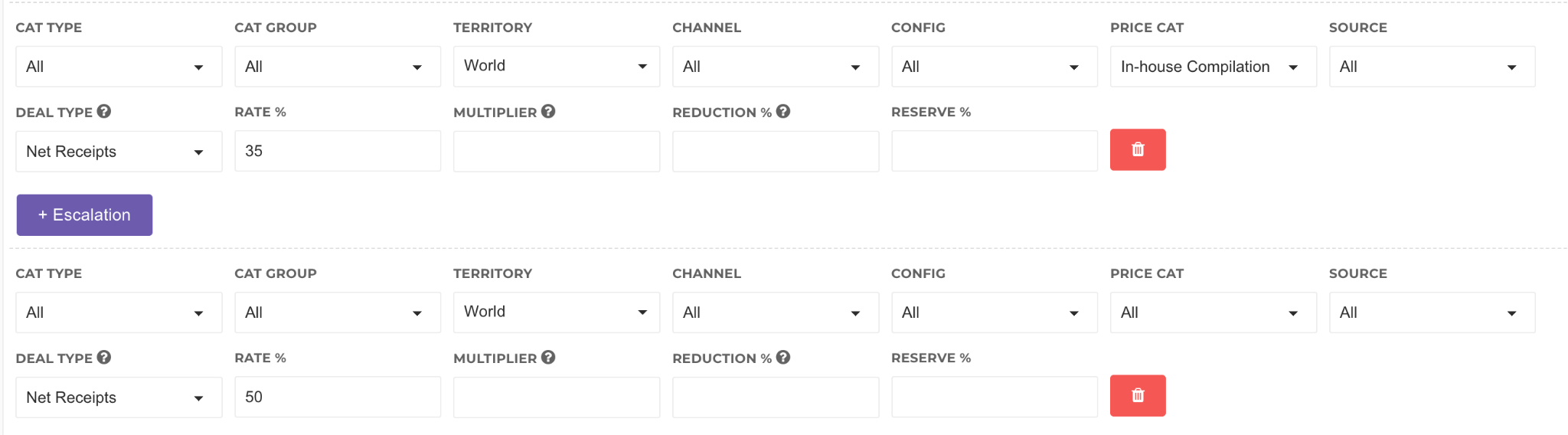
Specify on the Contract a royalty rate for all revenue with this Price Category.
These settings ensure Curve applies the release’s Price Category to both release-level and track-level sales lines.
Example use case: In-House Compilations
You have a group of In-House Compilation releases that must be processed under a unique royalty rate. Follow the steps below to configure this in Curve.
1. Create the Price Category
Navigate to:
Settings > Configurations > Price Categories
Create a new Price Category called: In-House Compilation
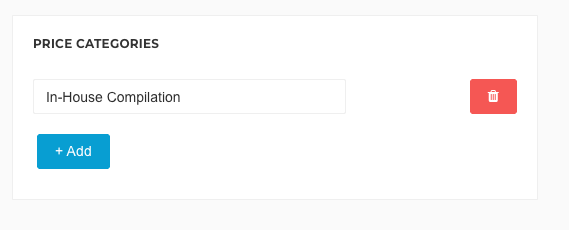
2. Assign the Price Category to the releases
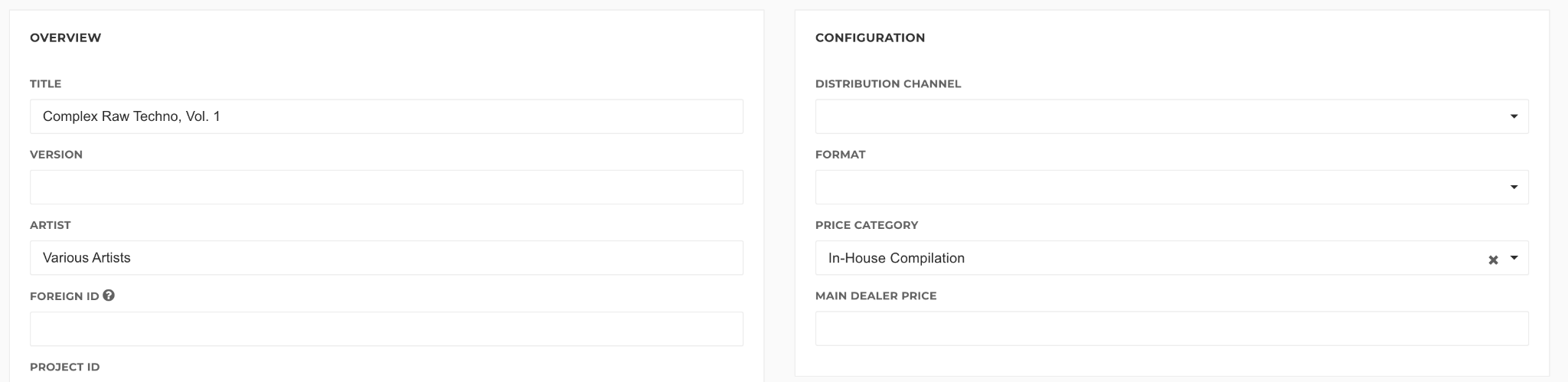
Open each release that should be categorised as In-House Compilation and set the Price Category as its default. You can find the Price Category for a release on the Overview.

3. Configure the Sales Template
Go to:
Sales > Templates > Select Template
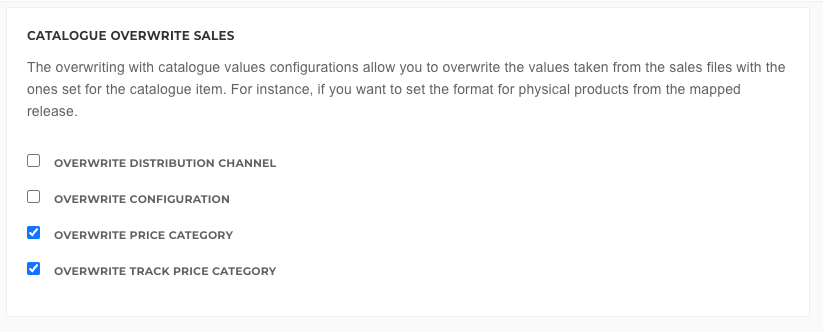
In the Catalogue Overwrite Sales section:
• Enable “Overwrite Price Category” - This will make sure that the Release’s price category will be stored on the sales line for Release sales.
• Enable “Overwrite Track Price Category” - This will make sure that the Release’s price category will be stored on the sales line for Track sales.
4. Outcome
For any sales files processed using the configured templates, Curve will automatically apply the Price Category associated with the specific release sold. In this example, when a release is assigned the In-House Compilation Price Category, that category is automatically carried over to the corresponding sales lines ensuring accurate royalty processing.
 English
 Nederlands