
“We're sorry, but your Template import has errored”. How can I correctly interpret these errors?
Interpreting import errors can sometimes be challenging. Error messages are formatted to help you cross-reference the failed entry between the Template's overview and its specific detail tabs. This is because, when adjusting Curve entries via the excel Templates, Curve will only adjust the data of assets mentioned on the Overview tab of your template.
Depending on the error, usually the first part (“Line x”) would reference the 1st Overview tab of an import Template, while the second part would refer to the actual tab where the data needs correction for the entry found in "Line x" of the the Overview tab.
Error Message Structure
- First Part ("Line x"): This number references the row in the first overview tab of the import Template, identifying the specific entry that failed.
- Second Part (Error Description): This identifies the data issue and implicitly refers to the detail tab where the correction must be made for the entry found in "Line x."
Example Resolution
Consider this error received when importing a Works Template:
Line 4: Error - IP Chain Territory not recognised.
To resolve this issue:
- Locate Entry ID: You would first need to find the Work's Main Identifier/Tunecode in row 4 of the first ("Works") tab.
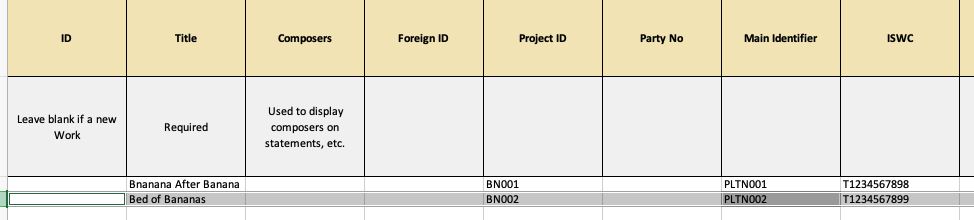
- Navigate to Detail Tab: The error indicates that the Territory found in the IP Chain is not stored in your Territories, hence it's not being recognised. So, you would then need to navigate to the "IP Chain" tab, which is where IP Chain's Territory is found.
- Apply Correction: Search for the Identifier found in Step 1 within the "IP Chain" tab, and review the Territories associated with this Work's IP Chain. If this Territory is not referenced in the last tab ("Reference"), you'd need to make sure to store it in your Territory Groups. Please note that Curve is case sensitive. This means that the value inserted in the Template must be an exact match with the value stored in your Curve client.
After you have tackled and resolved all errors , you can import the corrected Template back into Curve.
 English
 Nederlands